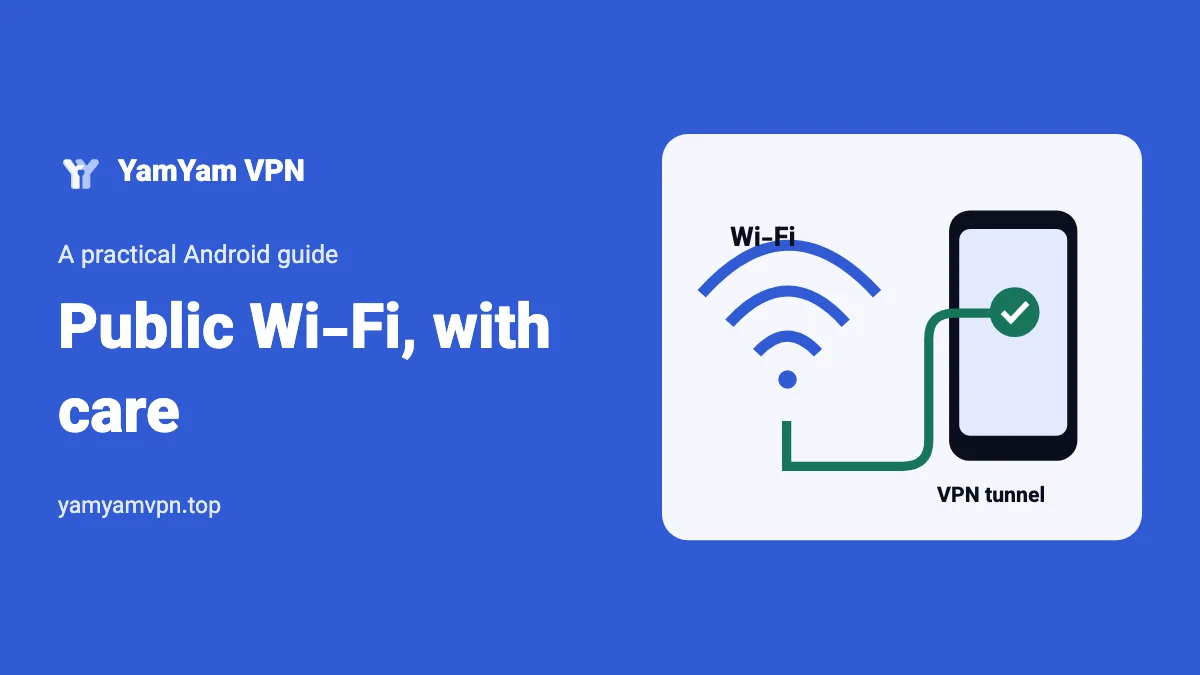
A VPN can add protection to traffic routed through its tunnel on public Wi-Fi, but it does not make an unknown network or a suspicious website trustworthy. Verify the network, finish any legitimate Wi-Fi sign-in, connect the VPN and check that new content loads. Keep HTTPS and certificate checks in place throughout.
This guide is for everyday Android use in a café, hotel, airport or other shared space. It is a practical connection checklist, not a test of a particular venue’s security. When the network or sign-in page looks wrong, using a connection you trust is a better decision than repeatedly trying to make the VPN work.
1. Confirm the network before joining
Ask the venue for the exact Wi-Fi name and its expected login procedure. A familiar-looking name is not enough to establish who operates an access point. If there are several similar names, confirm which one you should use instead of choosing the strongest signal.
Look at the request you are being asked to approve. Installing an unfamiliar APK, a device-management profile or a new certificate is a different action from joining Wi-Fi. Do not accept it as a routine connection step. If a venue requires a managed setup, ask its staff to explain the requirement before proceeding.
Turn off automatic joining for networks you do not intend to reuse. Keep the app and Android up to date through their normal update paths. For YamYam, use the official APK page rather than a file offered by the Wi-Fi login page, an unsolicited message or a pop-up.
2. Finish the Wi-Fi portal before testing the tunnel
Some shared networks show a sign-in or terms page before allowing ordinary internet access. Android may display a “Sign in to Wi-Fi network” notification. Open the expected system sign-in flow and check that it matches the venue’s instructions. Do not type unrelated account passwords simply because a page asks for them.
If the portal cannot appear while the VPN is active, you can pause the VPN briefly to complete the expected network sign-in. During that interval, avoid other browsing and sensitive activity. Then reconnect the VPN and test fresh content. This sequence is a troubleshooting option, not a requirement to lower security on every public network.
If your phone offers “Block connections without VPN,” that setting can also prevent a portal from loading. Do not change it without understanding that doing so permits direct traffic. If you prefer to keep the block in place, use another trusted connection instead. Restore any setting changed for sign-in and verify the result.
3. Connect and verify more than an icon
- Confirm that the Wi-Fi connection can reach ordinary internet content after sign-in.
- Open the VPN app and connect. In YamYam, Smart chooses the location and protocol automatically and is a sensible starting point.
- Read the app’s status and load a new webpage. A page already in the browser cache is a weak connectivity test.
- Try a second app or page. A single failing website is not enough to conclude that the whole tunnel failed.
- Check the connection again after the screen has been locked or the phone has moved to another network.
These checks establish that the connection works for the activity tested. They are not a complete audit for every kind of traffic leak. A changed public IP, where checked, is also only one observation; it does not prove that every app uses the same route.
YamYam can route selected apps and websites directly. Review those choices before relying on the tunnel for a particular activity. Its built-in website tester can show whether a chosen address uses the VPN or a direct route. Read the split-tunneling guide before adding exceptions on an unfamiliar network.
4. Keep HTTPS checks and account security
The VPN tunnel and HTTPS protect different parts of a connection. The tunnel covers traffic routed to the VPN endpoint; HTTPS protects the connection to the website using it. Neither makes a fraudulent website honest, prevents you from sending information to the wrong recipient or replaces safe account practices.
Check the domain before entering credentials. If the browser reports a certificate or connection warning, stop and investigate rather than proceeding because the VPN is connected. The site, phone clock or network could need attention; the VPN icon does not decide which cause applies.
Do not interpret private browsing as a replacement for a VPN, HTTPS or careful sign-in. Likewise, a VPN does not erase activity from an account you are logged into. Choose the protections that match the activity, and use the YamYam privacy policy for product-specific information rather than assuming broader promises.
5. Handle a failed connection without risky shortcuts
If ordinary internet access fails before the VPN connects, revisit the portal or ask the venue about the network. If ordinary access works but the VPN fails, try one connection-mode change and test again. The connection-mode guide explains YamYam’s options. Availability can vary by network; access to every site is not assured.
Check the app’s message for a used-up quota, and distinguish it from a Wi-Fi sign-in failure. The data-usage guide explains the separate limits. If the connection fails only after screen lock, use the background checklist instead of reinstalling everything.
When the venue’s network cannot provide a usable route, switch to a trusted alternative and account for its data allowance. After leaving, forget the public network if you do not need it again. Keep a short record of any setting you changed so that an improvised sign-in workaround does not become a permanent exception.
Frequently asked questions
Can the Wi-Fi operator still see that I am connected?
A VPN does not hide your device’s participation in the local network. It changes how traffic routed through the tunnel is carried; it does not make the device disappear from the Wi-Fi.
Is a Wi-Fi password proof that the network is safe?
No. Confirm the operator and expected sign-in process. A shared password alone does not establish that every access point or website is trustworthy.
Should I bypass the VPN to open a website?
Only when you deliberately accept a direct route for that activity. An exception changes the protection applied to that traffic, so do not add one merely to silence an unexplained warning.